Golden Boot User Manual
Welcome to Golden Boot, the professional soccer statistics tracking application for iOS. This comprehensive manual will guide you through all features and functionality to help you track, analyze, and report on soccer statistics with ease.
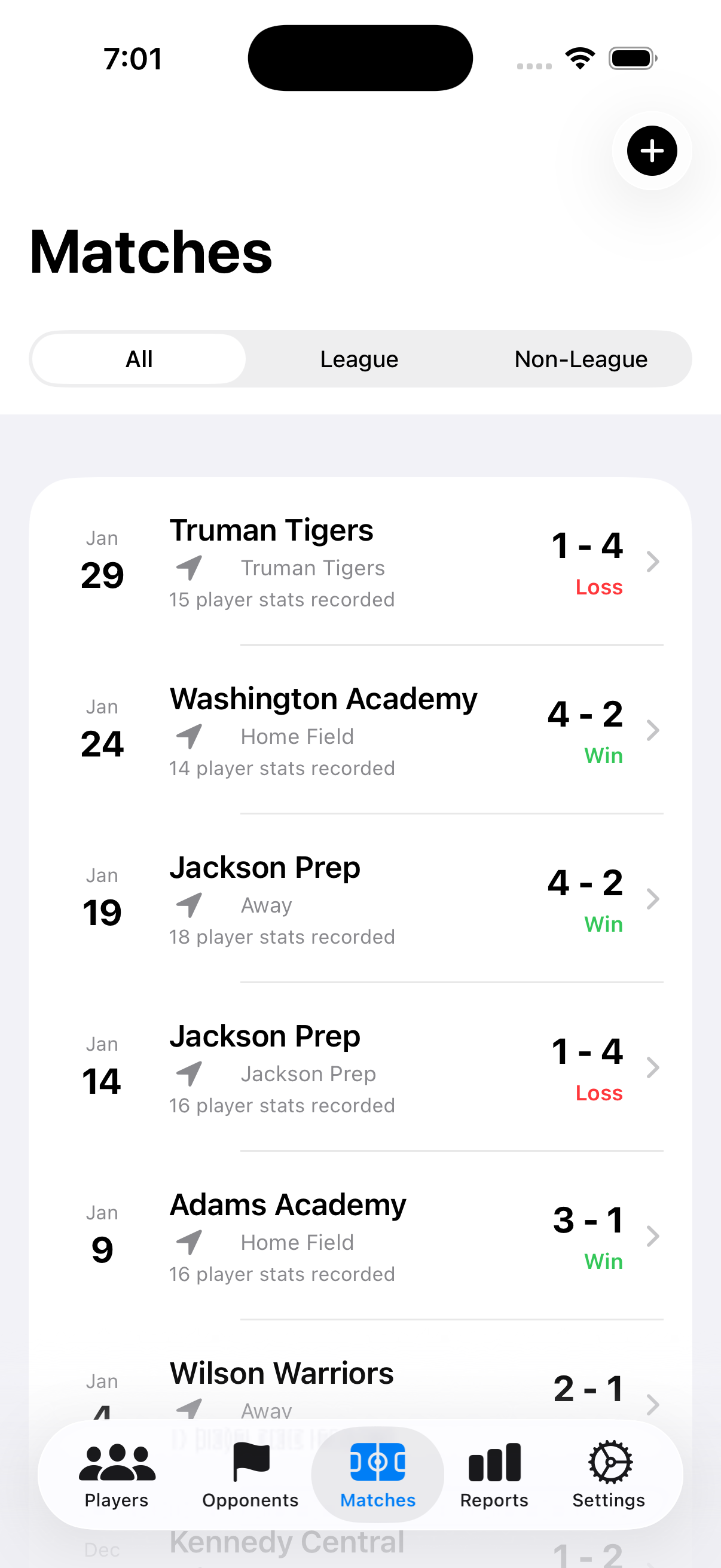
Golden Boot main interface
What is Golden Boot?
Golden Boot is a professional-grade statistics tracking application designed for soccer coaches and analysts. Whether you're coaching a youth team, managing an amateur league, or tracking player performance, Golden Boot provides the tools you need to record, analyze, and share comprehensive soccer statistics.
Getting Started
System Requirements
- iOS Version: iOS 18.6 or later
- Devices: iPhone and iPad
- Storage: Minimum 50 MB available space
Regularly export your data backups to ensure your statistics are safely stored.
Installation
Download from App Store
Open the App Store on your iPhone or iPad and search for "Golden Boot".
Golden Boot on the App Store
Install the App
Tap the "Get" button and authenticate with Face ID, Touch ID, or your Apple ID password.
Launch Golden Boot
Once installed, tap "Open" or find the Golden Boot icon on your home screen.
Golden Boot launch screen
Grant Permissions (if prompted)
Allow notifications to stay updated with your team's performance.
Statistics Tracking
Golden Boot provides comprehensive statistics tracking for individual players. Track performance across multiple matches, seasons, and competitions.
Available Statistics
| Statistic | Description | Calculation |
|---|---|---|
| Goals | Total goals scored | Manual entry per match |
| Assists | Passes leading to goals | Manual entry per match |
| Minutes Played | Total time on field | Calculated from substitution tracking |
| Goals Per Game | Average goals per match | Total Goals ÷ Games Played |
| Clean Sheets | Matches without conceding | Goalkeeper statistic |
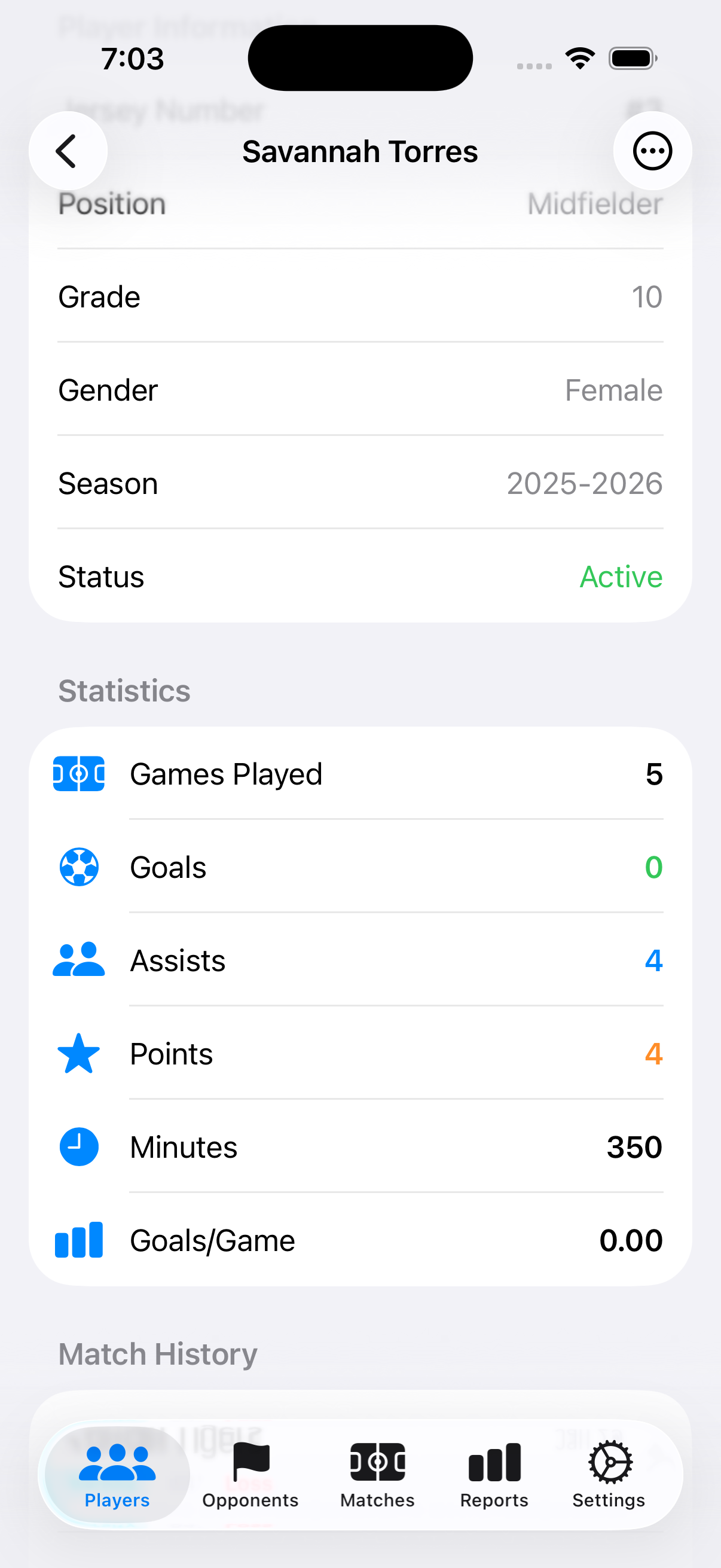
Player statistics overview
Player Management
Add and manage player profiles with detailed information and photo support. Track individual performance and statistics throughout the season.
Player Profile Information
- Full name and preferred display name
- Player photo (optional)
- Jersey number
- Primary position
- Date of birth
Detailed player profile view
Match Tracking
Record detailed match statistics in real-time or after the game. Track lineups, substitutions, goals, assists, and other key events.
Match Information
- Date and time
- Opponent team
- Location/venue
- Competition type
- Final score
- Starting lineup
- Substitutions with timing
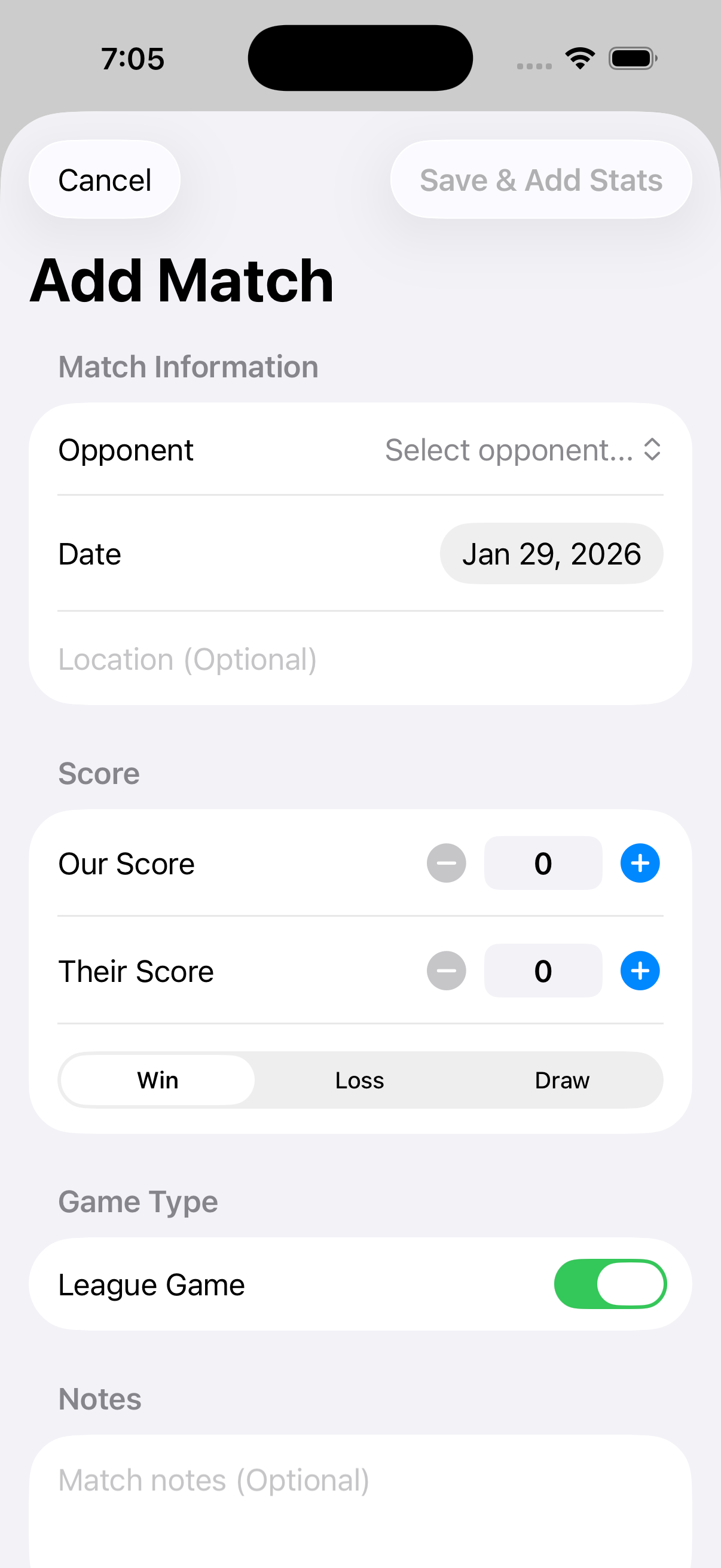
Match tracking and data entry interface
Reports & Analytics
Generate comprehensive reports with visual analytics and detailed breakdowns. Filter by player, date range, or competition type.
Report Types
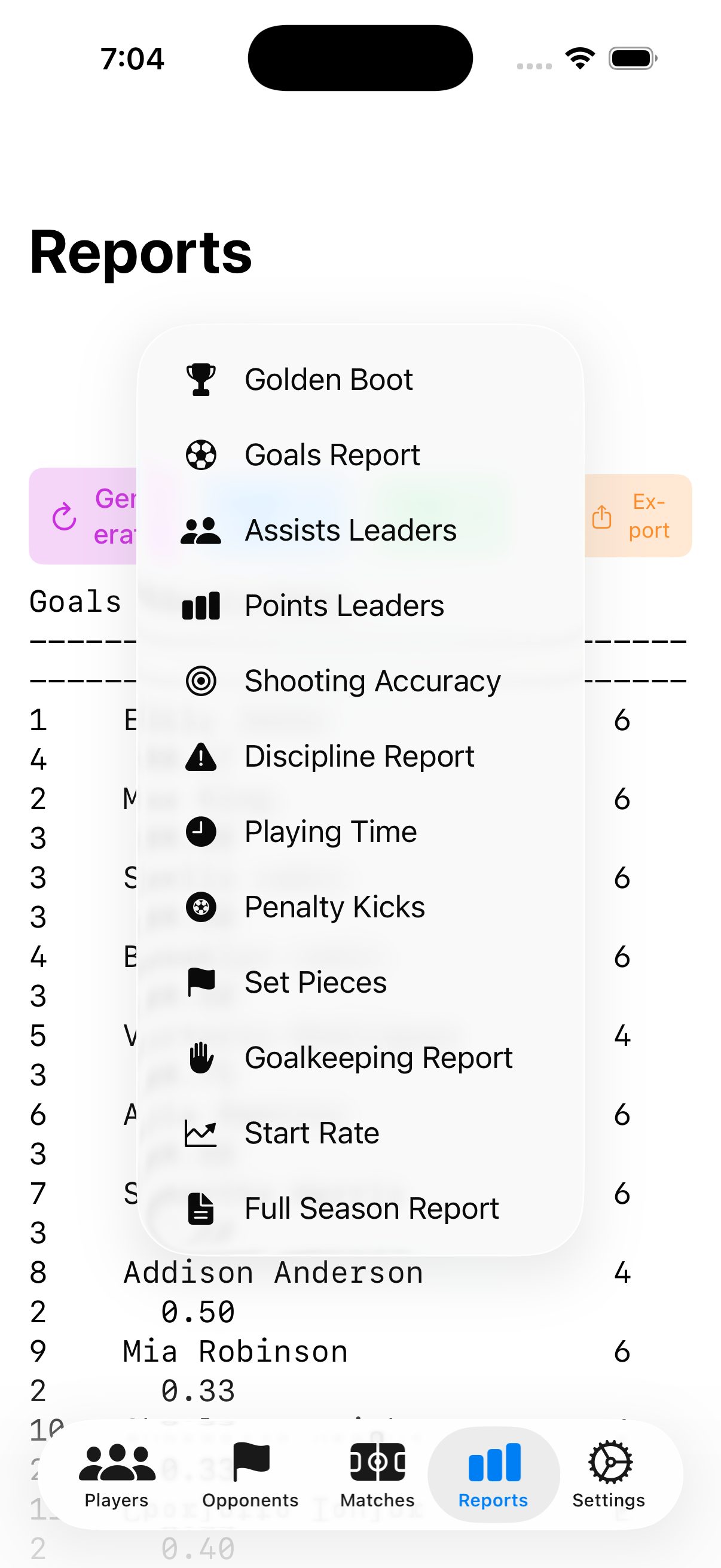
Reports and analytics interface
PDF Export
Export professional PDF reports for sharing with coaches, parents, or club administrators. Reports include statistics, charts, and comprehensive breakdowns.
PDF Features
- Professionally formatted layouts
- Comprehensive player statistics
- Visual charts and graphs
- Customizable date ranges
- Share via email, Messages, or AirDrop
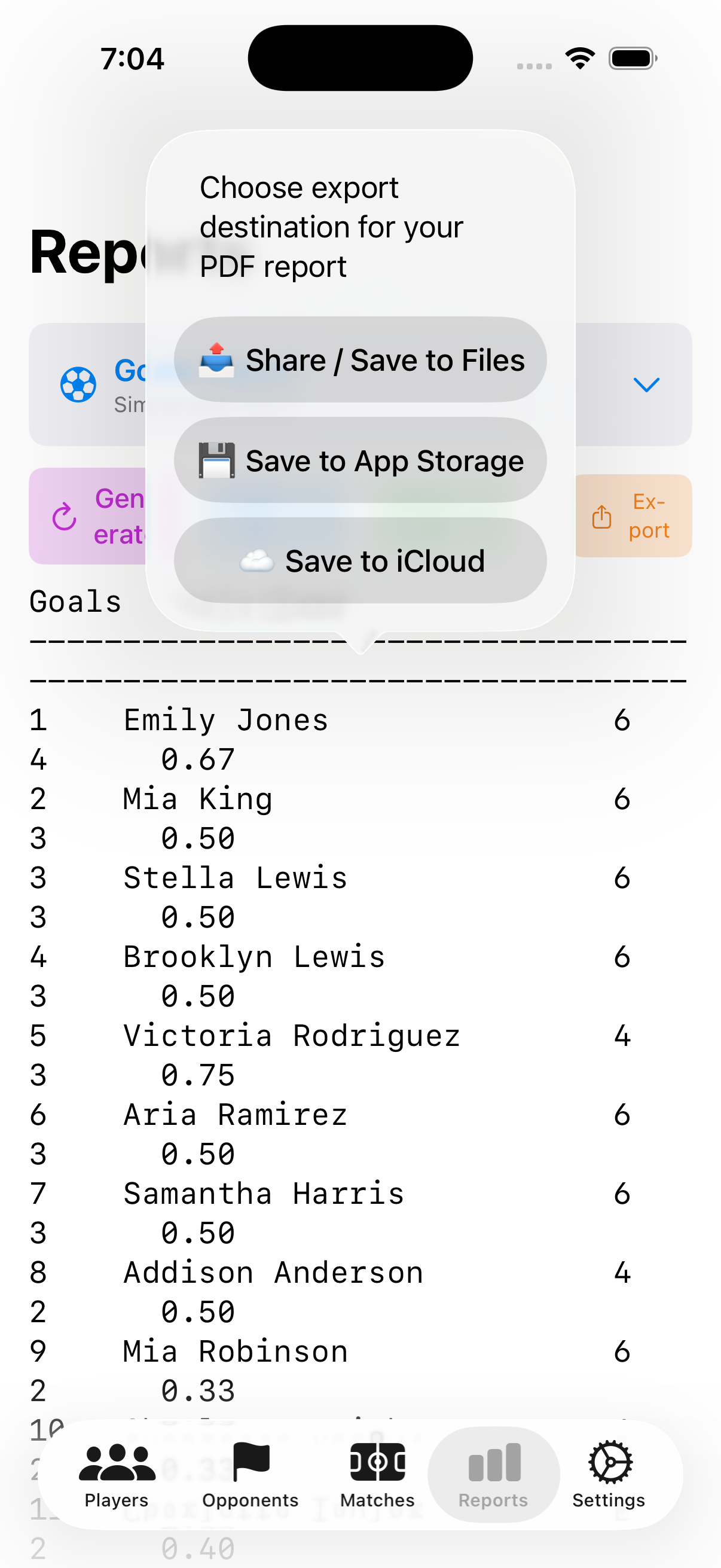
PDF export and sharing options
Example of a generated PDF report
📄 View Sample Report (PDF)Backup & Restore
Protect your data with automated backup management. Export your entire database for safekeeping or transfer to another device.
Backup Options
- Manual Export: Create a backup file to save locally or share
- Import: Restore data from a backup file
- Automated Backups: Configure automatic backups to your preferred cloud storage
Always create a backup before updating to a new version or transferring data between devices.
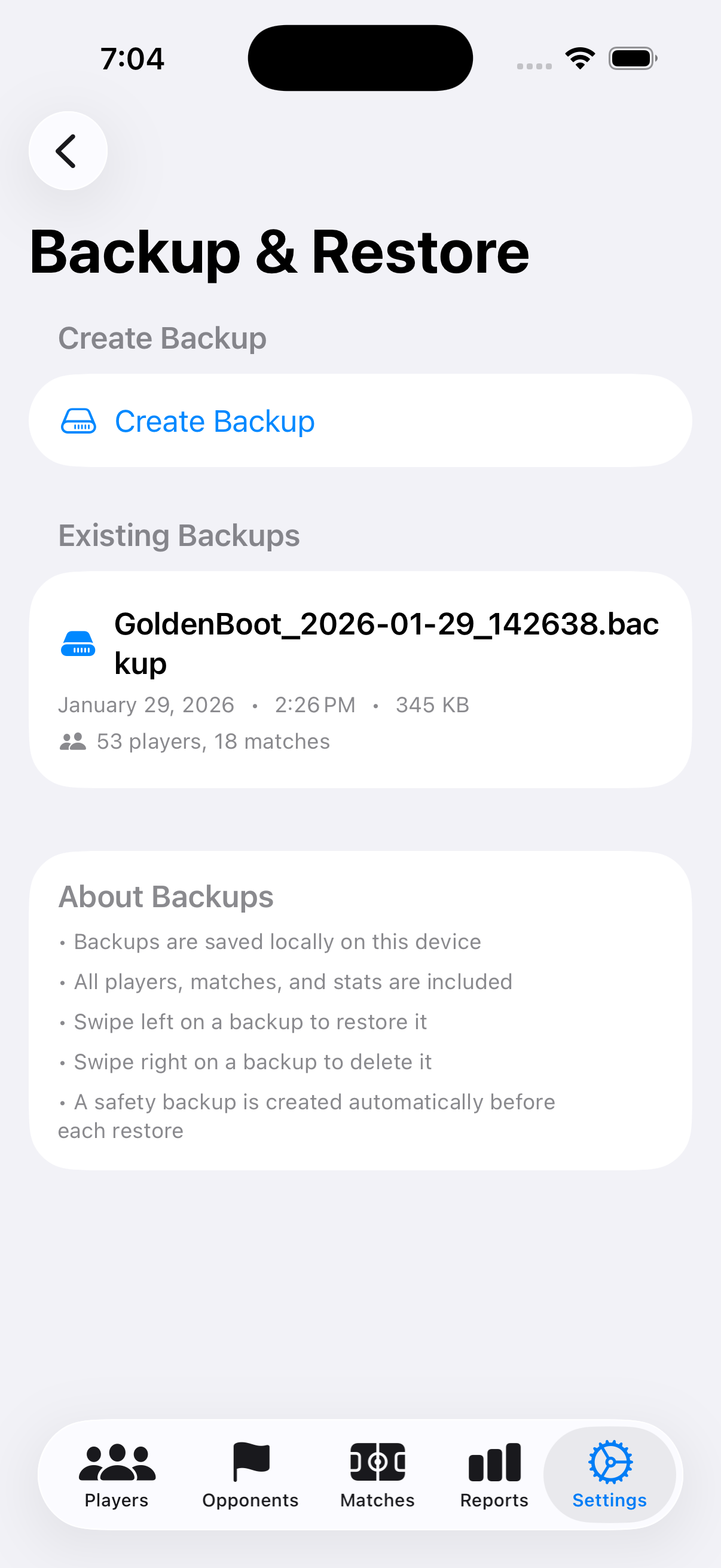
Backup and restore interface
How to Add Players
Navigate to Players
Tap on the "Players" tab in the bottom navigation bar.
Add New Player
Tap the "+" button to create a new player profile.
Fill in Player Information
Enter the player details:
- First and last name
- Jersey number
- Position
- Date of birth (optional)
- Add photo (optional)
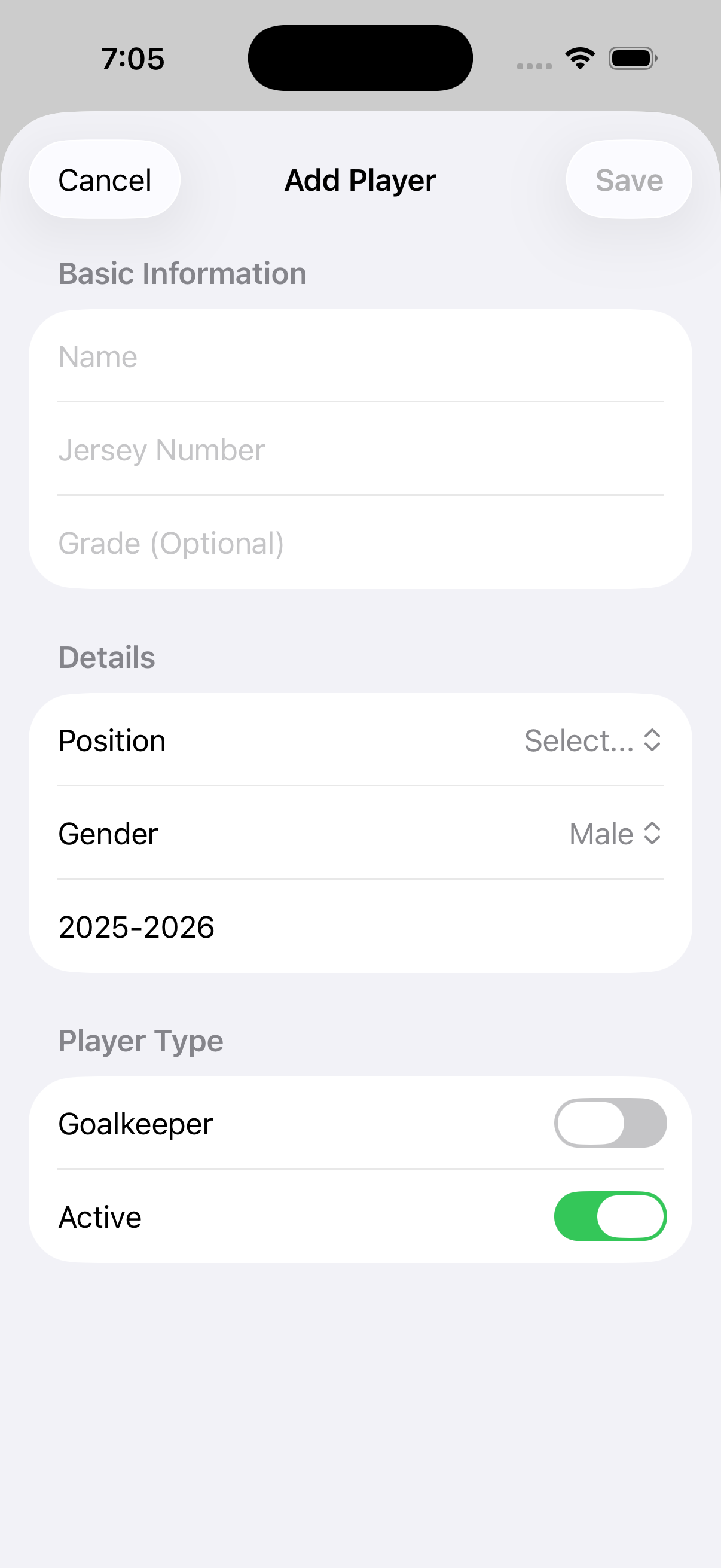
Player creation form
Save Player Profile
Tap "Save" to add the player to your roster.
How to Record Match Statistics
Create New Match
From the Matches tab, tap "+" to create a new match entry.
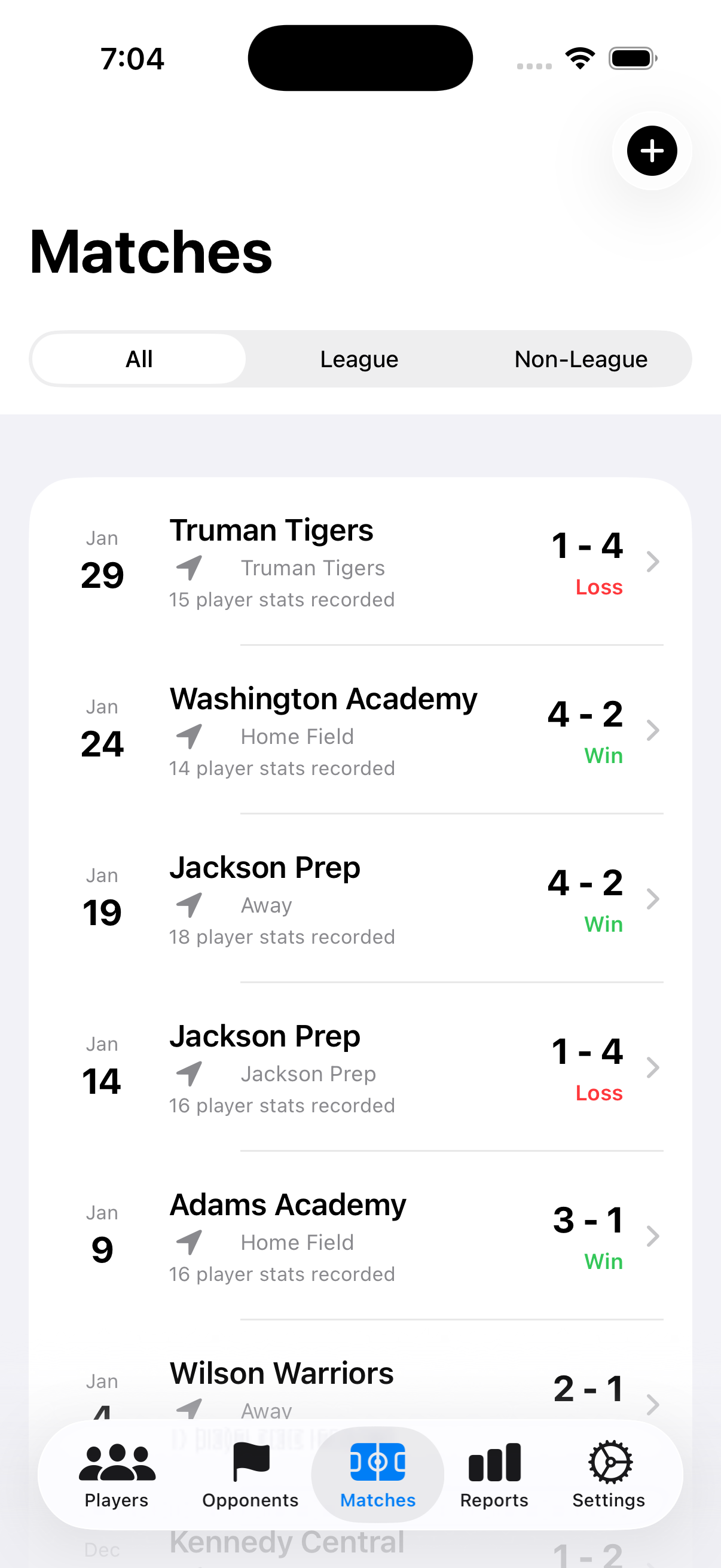
Matches list view
Enter Match Details
Fill in basic match information: date, opponent, location, and competition type.
Select Starting Lineup
Choose players who started the match and their positions.
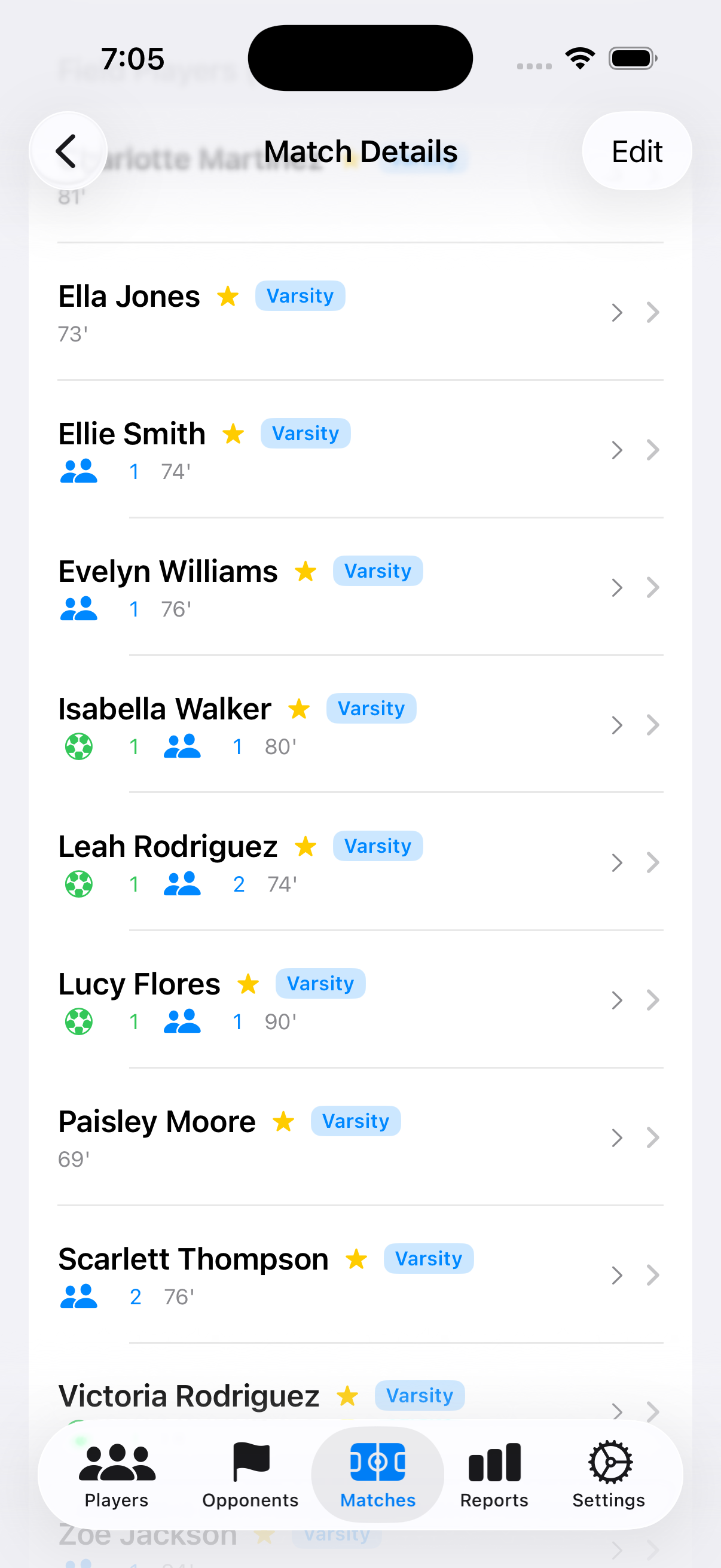
Starting lineup selection screen
Record Statistics
For each player, record:
- Goals scored
- Assists made
- Minutes played
- Substitutions
- Cards received (yellow/red)
Enter Final Score
Record the final score for both teams.
Save Match Data
Tap "Save" to store the match statistics securely on your device.
How to Generate Reports
Navigate to Reports
Tap the "Reports" tab in the bottom navigation.
Choose Report Type
Select the type of report you want to generate: Player, Season, or Comparison.
Available report types
Set Filters
Configure report parameters:
- Date range
- Specific players
- Competition types
- Statistical categories to include
Generate Report
Tap "Generate" to create the report. View it on screen or export to PDF.
How to Export Data
Open Settings
Tap the Settings icon (gear icon) in the app.
Select Backup & Export
Navigate to the "Backup & Export" section.
Choose Export Format
Select your preferred export format:
- PDF Report: Formatted statistics report
- Database Backup: Complete data export for restoration
- CSV: Spreadsheet-compatible format
Share or Save
Use the iOS share sheet to:
- Save to Files app
- Email the export
- Send via Messages or AirDrop
- Upload to cloud storage
Troubleshooting
Common Issues and Solutions
Data Not Showing on Another Device
Solution:
- Export a backup from your primary device
- Transfer the backup file to your other device
- Import the backup on the new device
- Data should now be available on both devices
App Crashes When Opening
Solution:
- Restart your device
- Check for app updates in the App Store
- Ensure iOS is up to date (Settings → General → Software Update)
- If problem persists, export a backup, then delete and reinstall the app
Cannot Export PDF
Solution:
- Check available storage space on your device
- Ensure you have granted necessary permissions
- Try exporting a smaller date range
- Restart the app and try again
Statistics Not Calculating Correctly
Solution:
- Verify all match data was entered correctly
- Check that player minutes played don't exceed match duration
- Review substitution timings for accuracy
- Pull down on the statistics screen to refresh
If these solutions don't resolve your problem, please contact support with a detailed description of the issue.
Frequently Asked Questions
Is my data backed up automatically?
Golden Boot stores all data locally on your device. You can create manual backup files at any time and save them to your preferred cloud storage service for safekeeping.
Can I edit match statistics after they're saved?
Yes, you can always go back and edit match data. Simply select the match from your matches list and tap "Edit" to make changes.
How do I share reports with parents or coaches?
Generate a PDF report and use the iOS share function to send via email, Messages, AirDrop, or any other sharing method. Reports are professionally formatted and ready to distribute.
Can I import data from another app?
Currently, Golden Boot supports importing data from CSV files and Golden Boot backup files. Contact support if you need assistance migrating from another statistics tracking system.
Does the app work offline?
Yes! Golden Boot works completely offline. All data is stored locally on your device, so you can track statistics anytime, anywhere.
How many players can I add?
There is no limit to the number of players you can add in the app.
Can I track statistics for multiple seasons?
Absolutely! You can track player statistics across multiple seasons and filter reports by date range to view season-specific performance data.
Contact Support
Need additional help? Our support team is here to assist you with any questions or issues.
Support Options
Please include your device model, iOS version, and a detailed description of the issue or question. Screenshots are always helpful!